Contents12 sections
This guide was first published in German on handgetestet.de.
Many people buy an expensive pen display even though they mainly use it to retouch photos or sketch a few notes in video calls. For that, a mid-size tablet without a screen is enough, such as the Wacom One M or the Huion Inspiroy 2 M. The extra cost of a pen display such as the Wacom Cintiq 16 is only justified if you want to draw directly on the image for many hours a day.
First question: do you draw on the desk or on the image?
The classic graphics tablet has no display. Your hand moves on the desk while your eyes stay on the monitor. It feels strange at first. After that, a lot speaks in its favor: it is cheaper, lighter, and your head stays up because the monitor sits at eye level.
With a pen display, the pen works directly on a screen, which comes much closer to paper. It demands more space on the desk, an extra cable to the computer and sits in a completely different price bracket. Is there already a good monitor on your desk? Then first try whether a tablet without a screen is enough. We cover color-accurate screens in our guide to the monitor for photo and video editing.
Second question: how big, how precise, which connection?
The active area should match your monitor. In front of a 24- or 27-inch screen, a medium format around 22 to 26 centimeters wide is comfortable to work with. Small tablets disappear into any laptop bag. However, they force you into very short strokes.
Pressure level figures vary widely. Wacom quotes 4,096 levels for the One and 8,192 for the Intuos Pro, while XPPen and Huion advertise up to 16,384. The number alone tells you little about how drawing feels. What matters more is a low activation force and clean tilt recognition. According to the manufacturers, every pen featured here handles tilt up to about 60 degrees, and none of them needs a battery. Nothing has to be charged.
Customizable keys and wheels save you from reaching for the keyboard. In photo editing, that is handy. If you only sketch occasionally, you will hardly need them.
The connection has one particular catch. Pen displays need a video signal, and if a single USB-C cable is supposed to do the job, the computer must be able to output DisplayPort through that port. Your laptop’s spec sheet tells you whether it can. Checking before you order saves trouble.
Windows, macOS and Linux
All three manufacturers have their own drivers for Windows and macOS. The new Wacom models require a current system; for the Intuos Pro and Cintiq 16, the spec sheet lists Windows 10 or macOS 13. Linux is a chapter of its own. There is no driver from Wacom itself. Support comes from the free Linux Wacom Project, whose kernel driver many distributions already include, and by its own account Wacom does not provide customer support for desktop Linux. XPPen and Huion provide their own Linux packages. However, some of the distributions listed as tested are several years old. On a current Linux system, look for experiences with exactly that model before you buy.
7 graphics tablets and pen displays side by side
| Model | Type and area | Pressure levels | Linux per manufacturer | Best for |
|---|---|---|---|---|
| Wacom One M | Tablet, 216 × 135 mm, USB and Bluetooth | 4,096 | not listed | Beginners, office, school |
| Wacom Intuos Pro M (2025) | Tablet, 263 × 148 mm, USB and Bluetooth | 8,192 | not listed | Photographers, professionals |
| XPPen Deco 01 V3 | Tablet, 10 × 6.25 inches, USB-C | 16,384 | yes, own packages | Small budget |
| Huion Inspiroy 2 M | Tablet, 221 × 138 mm, USB-C | 8,192 | yes (Ubuntu 20.04) | Entry level with scroll wheel |
| Wacom Cintiq 16 (2025) | Display, 16 inches, 2560 × 1600 | 8,192 | not listed | Illustration, comics |
| Huion Kamvas 16 (Gen 3) | Display, 15.8 inches, 2560 × 1440 | 16,384 | yes (Ubuntu 20.04) | Pen display at a mid-range price |
| XPPen Artist Pro 16 (Gen 2) | Display, 16 inches, 2560 × 1600 | 16,384 | yes, own packages | Color work, Linux users |
Wacom One M
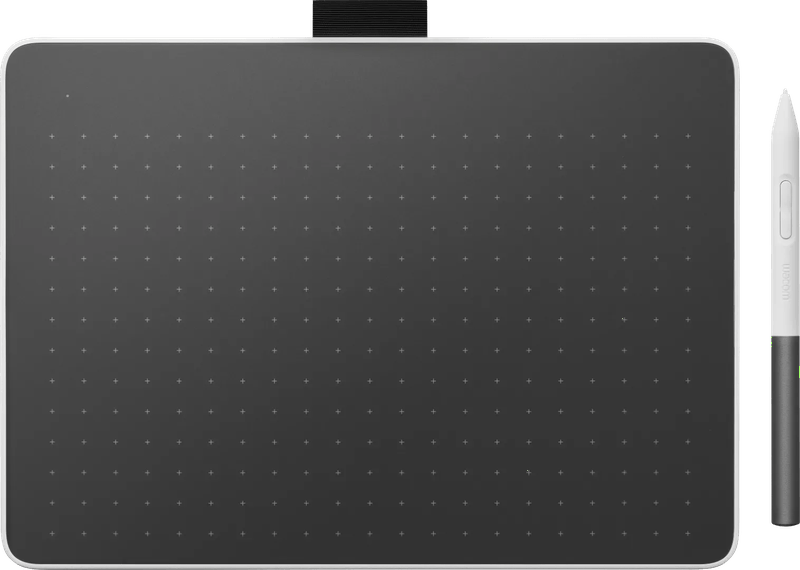
The One is Wacom’s entry point, available in S and M. The medium size has an active area of 216 × 135 mm, connects via USB or Bluetooth 5.1 and, according to the manufacturer, runs on Windows, macOS, ChromeOS and Android. On paper, its 4,096 pressure levels put it behind the competition. For signatures, notes and simple retouching, you won’t notice any of that.
Wacom Intuos Pro M (2025)
According to the manufacturer, the new edition of the Intuos Pro is just 4 to 7 mm thick. You draw with the Pro Pen 3, which has three buttons. The M size measures 263 × 148 mm in a 16:9 aspect ratio, plus ten ExpressKeys and two touch rings. Three devices can be paired at once and switched with a slider. It is built for anyone who edits photos every day. For occasional drawing, the added value does not justify the price.
XPPen Deco 01 V3
Serious tablets hardly get any cheaper. XPPen quotes an active area of 10 × 6.25 inches, eight keys and a pen with 16,384 pressure levels. The list of supported systems is strikingly long: Windows, macOS, ChromeOS, Android and several Linux distributions. It connects by cable only.
Huion Inspiroy 2 M
An active area of 221 × 138 mm, eight keys and a scroll wheel you can use to zoom or change the brush size, for example. According to the manufacturer, three group keys let you store up to 24 functions. The pen resolves 8,192 pressure levels. Linux is officially listed with Ubuntu 20.04.
Wacom Cintiq 16 (2025)
Wacom specifies a 16-inch IPS display with 2560 × 1600 pixels and 99 percent DCI-P3 for the new Cintiq 16, and here too you draw with the Pro Pen 3. There are no keys on the housing. The ExpressKey Remote costs extra. A single USB-C cable is enough, provided the computer supports DisplayPort Alt Mode and power delivery over USB-C. Thanks to a 75 mm VESA mount, it also fits on a monitor arm.
Huion Kamvas 16 (Gen 3)
According to the manufacturer, the third generation of the Kamvas 16 brings 2560 × 1440 pixels on 15.8 inches, etched anti-glare glass and factory calibration. The device has two dials and six keys, and the pen works with 16,384 pressure levels. A sensible middle ground. If you want to draw directly on the image but don’t want to pay Wacom prices, this is where you end up.
XPPen Artist Pro 16 (Gen 2)
For the second generation of the Artist Pro 16, XPPen quotes 2560 × 1600 pixels, 99 percent sRGB and DCI-P3, and 97 percent Adobe RGB. The box includes a wireless shortcut remote, the X-Remote. On Linux, it is the first choice among the pen displays here, because the manufacturer offers its own packages for many distributions.
What kind of artist are you?
- First tablet, office or school: Wacom One M. Bluetooth and broad system support make it straightforward.
- Tight budget: XPPen Deco 01 V3 or Huion Inspiroy 2 M. Both belong to the Entry-level class and also run on Linux.
- Photos every day: Wacom Intuos Pro M (2025). Keys, rings and the Pro Pen 3 save time.
- Directly on the image: Wacom Cintiq 16, provided you use Wacom’s drivers on Windows or macOS. On a tighter budget, the Huion Kamvas 16 (Gen 3).
- Pen display on Linux: XPPen Artist Pro 16 (Gen 2).
And if you mostly sketch on the go and are eyeing an Apple device anyway, you can also consider an iPad with a pen. You can find out which models support the Apple Pencil in our iPad comparison.
If you want to trace by hand, you will find formats and light colors in our guide to the light pad (in German).
Frequently asked questions
Graphics tablet or pen display: which one suits me?
With a graphics tablet, your hand moves on the desk while your eyes stay on the monitor. It is cheaper, lighter, and your head stays up. A pen display comes closer to paper, but it needs more space, an extra cable and sits in a completely different price bracket.
What size should a graphics tablet be?
The active area should match your monitor. In front of a 24- or 27-inch screen, a medium format around 22 to 26 centimeters wide is comfortable to work with. Small tablets disappear into any laptop bag, but they force you into very short strokes.
How important are lots of pressure levels?
Less than the marketing suggests. Wacom quotes 4,096 levels for the One, while XPPen and Huion advertise up to 16,384. The number alone tells you little about how drawing feels. What matters more is a low activation force and clean tilt recognition, which all the pens featured here handle, according to the manufacturers.
Does a graphics tablet work on Linux?
Wacom does not offer its own Linux driver; support comes from the free Linux Wacom Project. XPPen and Huion provide their own Linux packages, but some of the distributions listed as tested are several years old. For a pen display on Linux, this guide names the XPPen Artist Pro 16 (Gen 2).
Is a single USB-C cable enough for a pen display?
Only if your computer can output DisplayPort through that port, because the display needs a video signal. With the Wacom Cintiq 16, the computer must also support power delivery over USB-C. Your laptop's spec sheet tells you whether it can; checking before you order saves trouble.
Which pen display is available at a mid-range price?
According to the manufacturer, the Huion Kamvas 16 (Gen 3) offers 2560 × 1440 pixels on 15.8 inches, etched anti-glare glass, factory calibration plus two dials and six keys. If you want to draw directly on the image but don't want to pay Wacom prices, this is where you end up.
Sources
- Wacom: Wacom One pen tablet
- Wacom: Intuos Pro (2025)
- Wacom: Cintiq 16 and 24 (2025)
- Wacom Support: Linux driver
- Wacom: Pens and Tablets for Linux
- XPPen: Deco 01 V3
- XPPen: Artist Pro 16 (Gen 2)
- Huion: Inspiroy 2 M
- Huion: Kamvas 16 (Gen 3)
Where to buy
- Wacom One MView at CoolblueAvailable in Germany: CoolblueCheck price at Amazon.deCheck price at Amazon.co.ukCheck price at Amazon.nlCheck price at Amazon.com.beCheck price at Amazon.frCheck price at Amazon.itCheck price at Amazon.esCheck price at Amazon.plCheck price at Amazon.seAvailable in Germany: Amazon.de
- XPPen Deco 01 V3Check price at Amazon.deCheck price at Amazon.co.ukCheck price at Amazon.nlCheck price at Amazon.com.beCheck price at Amazon.frCheck price at Amazon.itCheck price at Amazon.esCheck price at Amazon.plCheck price at Amazon.seAvailable in Germany: Amazon.de
- Wacom Intuos Pro M (2025)Check price at Amazon.deCheck price at Amazon.co.ukCheck price at Amazon.nlCheck price at Amazon.com.beCheck price at Amazon.frCheck price at Amazon.itCheck price at Amazon.esCheck price at Amazon.plCheck price at Amazon.seAvailable in Germany: Amazon.de
- Huion Inspiroy 2 MCheck price at Amazon.deCheck price at Amazon.co.ukCheck price at Amazon.nlCheck price at Amazon.com.beCheck price at Amazon.frCheck price at Amazon.itCheck price at Amazon.esCheck price at Amazon.plCheck price at Amazon.seAvailable in Germany: Amazon.de
- Wacom Cintiq 16 (2025)View at CoolblueAvailable in Germany: CoolblueCheck price at Amazon.deCheck price at Amazon.co.ukCheck price at Amazon.nlCheck price at Amazon.com.beCheck price at Amazon.frCheck price at Amazon.itCheck price at Amazon.esCheck price at Amazon.plCheck price at Amazon.seAvailable in Germany: Amazon.de
- Huion Kamvas 16 (Gen 3)Check price at Amazon.deCheck price at Amazon.co.ukCheck price at Amazon.nlCheck price at Amazon.com.beCheck price at Amazon.frCheck price at Amazon.itCheck price at Amazon.esCheck price at Amazon.plCheck price at Amazon.seAvailable in Germany: Amazon.de
- XPPen Artist Pro 16 (Gen 2)Check price at Amazon.deCheck price at Amazon.co.ukCheck price at Amazon.nlCheck price at Amazon.com.beCheck price at Amazon.frCheck price at Amazon.itCheck price at Amazon.esCheck price at Amazon.plCheck price at Amazon.seAvailable in Germany: Amazon.de