Contents13 sections
This guide was first published in German on handgetestet.de.
Many docks are chosen by the number of ports they have. But what really matters is the laptop they are connected to. A MacBook Air with M5 or a current Windows laptop with Thunderbolt 4 pairs well with the CalDigit TS4 or the small Element Hub. Thunderbolt 5 with the TS5 Plus or Kensington SD5000T5 EQ only pays off on a MacBook Pro with M5 Pro or M5 Max, and if you want three monitors, there is no way around it anyway.
It is different on the MacBook Neo and older Macs with a base chip. For two displays, the only option there is a dock with DisplayLink. Only need to connect one monitor, a USB stick and the charging cable? Then you do not need a dock at all; a simple hub will do.
Which laptop is on the desk?
No dock in the world can conjure up monitors that the chip does not drive. Apple states the limit in the technical specifications on apple.com, and it is a hard one.
The MacBook Neo supports one external display at up to 4K at 60 Hz, and only via the USB 3 port. The second port only manages USB 2, and Thunderbolt is missing entirely. The MacBook Air with M5 drives up to two external displays, according to Apple even both via a single Thunderbolt 4 port, while the built-in display stays on. The MacBook Pro 14 with M6 also supports two, combinable via Thunderbolt 4 and HDMI. Only the MacBook Pro with M5 Pro handles up to three external displays, and with M5 Max even up to four. Only these two have Thunderbolt 5.
Under Windows, it is less clear-cut. For Thunderbolt 4 certification, Intel requires two 4K monitors and charging via at least one port. USB4, on the other hand, is flexible. According to Intel, 20 Gbit/s is already permitted there, with 40 Gbit/s only optional, and if you read your own laptop’s data sheet beforehand, you save yourself returns. For Windows computers with Thunderbolt 4, CalDigit states up to two monitors on the dock, and a maximum of three with Thunderbolt 5. For choosing a Windows laptop, our guide to Windows laptops helps; for Apple, our MacBook comparison (in German).
One trap lurks only on the Mac. macOS does not support DisplayPort MST, so according to UGREEN and Plugable, a cheap hub with two HDMI ports shows the same image on both monitors there. On a Windows laptop, the same hub often works as intended.
How much power reaches the laptop?
For the MacBook Pro 14 with M6, Apple recommends at least 60 W, and 96 W for fast charging. For the 16-inch Pro with M5 Pro or Max, 94 W is the minimum and 140 W for fast charging. Under load, a dock with 60 W can therefore hardly keep a large Pro topped up. Small hubs deserve a second look. There, „100 W“ usually refers to the connected power adapter; according to Anker and Satechi, around 85 W is passed through.
The real reason for a large dock is Ethernet, a card reader and fast USB ports. If you work a lot with external drives, the ports should be 10 Gbit/s. For the SSDs themselves, see our guide to external SSDs (in German).
Seven docks and hubs, from Thunderbolt 5 to USB-C
| Model | Connection / class | Charging (laptop) | Best for |
|---|---|---|---|
| CalDigit TS5 Plus | Thunderbolt 5, 20 ports, 10-gigabit Ethernet, high-end | up to 140 W | MacBook Pro M5 Pro/Max, professional desk |
| Kensington SD5000T5 EQ | Thunderbolt 5, 3 TB5 ports, 2.5-gigabit Ethernet, upper mid-range | up to 140 W | Three monitors on Mac or Windows |
| CalDigit TS4 | Thunderbolt 4, 18 ports, 2.5-gigabit Ethernet, mid-range | up to 98 W | MacBook Air M5, Pro M6, Windows with TB4 |
| CalDigit Element Hub | Thunderbolt 4, 4× TB4 and 4× USB-A, mid-range | up to 60 W | Two monitors, little space |
| Anker 568 (USB4) | USB4 at 40 Gbit/s, 11 ports, lower mid-range | up to 100 W | Windows laptops with USB4 |
| Plugable UD-6950PDH | USB-C with DisplayLink, 2× HDMI and 2× DisplayPort, lower mid-range | up to 100 W | MacBook Neo, M1/M2 Macs with two monitors |
| Satechi Multiport Adapter 8K V3 | USB-C hub without power adapter, entry level | up to 85 W passed through | On the go, one monitor |
CalDigit TS5 Plus
According to CalDigit, the top model has 20 ports, including two Thunderbolt 5 ports for additional devices, ten USB ports at 10 Gbit/s each, DisplayPort 2.1 and 10-gigabit Ethernet. The laptop receives up to 140 W. The fine print matters. It does not work with USB-C computers at 5 or 10 Gbit/s, including the MacBook Neo, and only with limitations on Thunderbolt 4. Without a 10-gigabit network, the regular TS5 is enough; it also delivers 140 W and has three Thunderbolt 5 ports.
Kensington SD5000T5 EQ
Three Thunderbolt 5 ports, three USB-A ports, a card reader, 2.5-gigabit Ethernet. According to Kensington, a MacBook Pro with M5 Pro or M5 Max runs three monitors up to 6K, and Windows laptops with Thunderbolt 5 run three 4K monitors at 144 Hz. No driver is needed. A comparable option is the OWC 11-Port Thunderbolt 5 Dock, also with 140 W and 2.5-gigabit Ethernet.
CalDigit TS4
For most desks, we consider it more sensible than any Thunderbolt 5 dock. Three Thunderbolt 4 ports, five USB-A, three USB-C, DisplayPort 1.4, an SD reader and 2.5-gigabit Ethernet cover almost everything. With 98 W, it easily charges a MacBook Air or a 14-inch Pro. Two monitors on the Air with M5 work via the dock, because Apple allows two displays on one Thunderbolt port.
CalDigit Element Hub
Small and without Ethernet, with four Thunderbolt 4 ports and four USB-A ports. The monitors connect directly to the hub with a USB-C or Thunderbolt cable. The 60 W of charging power is tight. It is enough for a MacBook Air, but not for a 16-inch Pro under load.
Anker 568 (USB4)
Anker states 40 Gbit/s via USB4, up to 100 W for the laptop, Ethernet, HDMI and two DisplayPort outputs. Two 4K monitors at 60 Hz work, three only at 30 Hz. Because these multiple displays require MST, the dock belongs on a Windows laptop. Not on a Mac.
Plugable UD-6950PDH
Here the images are generated by DisplayLink software, which gets around the limit of the base chips. According to Plugable, the dock drives two 4K monitors at 60 Hz and charges with up to 100 W. That comes at a price: a driver installation, screen recording permission in macOS and black areas with copy-protected streams from Netflix or Disney+. In the office, that hardly matters. For movies, games and color work, it does. Plugable explicitly describes this route for the MacBook Neo as well.
Satechi Multiport Adapter 8K V3
Made for the laptop bag, with HDMI, gigabit Ethernet, three USB ports at 10 Gbit/s and a UHS-II card reader, plus up to 85 W of charging power via a connected power adapter. According to Satechi, on the MacBook Neo the HDMI output delivers at most 4K at 60 Hz. Even cheaper are the Anker 341 or the UGREEN Revodok with seven ports; compare the exact model number there, because some variants only deliver 4K at 30 Hz.
Premium class, mid-range, entry level
Between a hub for the laptop bag and a Thunderbolt 5 dock, there is more than just the number of ports. That is why there are three classes, each with our pick. The buy box shows the current price.
- Premium class: CalDigit TS5 Plus. For the MacBook Pro with M5 Pro or M5 Max, up to 140 W of charging power, 10-gigabit Ethernet and DisplayPort 2.1. It does not work with USB-C computers at 5 or 10 Gbit/s or with Windows PCs with Thunderbolt 3. Alternative for three monitors without a 10-gigabit network: Kensington SD5000T5 EQ.
- Mid-range: CalDigit TS4. 18 ports, 2.5-gigabit Ethernet and up to 98 W, suitable for the MacBook Air M5, MacBook Pro M6 and Windows laptops with Thunderbolt 4. Smaller and without Ethernet: CalDigit Element Hub. For Windows laptops with USB4: Anker 568.
- Entry level: Satechi Multiport Adapter 8K V3. A hub without its own power adapter for one monitor and on the go, with gigabit Ethernet, a card reader and up to 85 W of passed-through charging power. It cannot handle multiple monitors on a Mac.
Which dock for which laptop?
For a MacBook Pro with M5 Pro or M5 Max and three monitors, we end up with the Kensington SD5000T5 EQ or the CalDigit TS5 Plus, the latter only with a 10-gigabit network. For the MacBook Air M5, MacBook Pro M6 and Windows with Thunderbolt 4, we choose the CalDigit TS4. If you do not need Ethernet, the Element Hub will do.
A Windows laptop with USB4 pairs with the Anker 568. If two monitors are connected to a MacBook Neo or an M1/M2 Mac, the Plugable UD-6950PDH remains, with the limitations mentioned. One monitor and lots of travel? Satechi Multiport Adapter 8K V3 or a simple hub from Anker or UGREEN.
One more thought. A dock for three displays does little good if the monitors themselves are not right; what matters there is explained in our article on monitors for photo and video editing (in German).
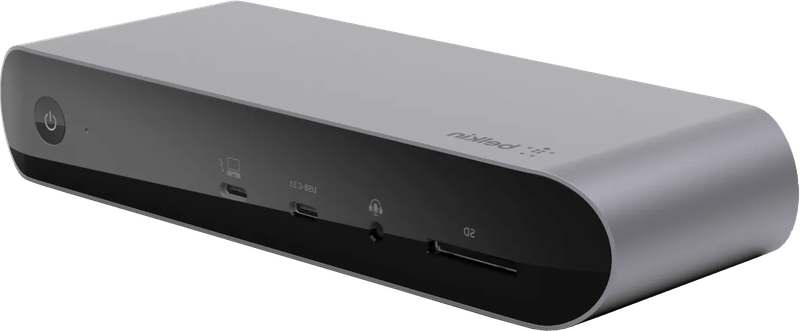
According to Belkin, the Belkin Pro Thunderbolt 4 Dock (INC006) has twelve ports, including two Thunderbolt 4 ports, two HDMI 2.0 outputs and gigabit Ethernet, charges the laptop with up to 90 W and, according to the manufacturer, supports only one extended display on M1 MacBooks.
Torn between CalDigit’s Thunderbolt 4 and Thunderbolt 5 docks? You can read the direct comparison under CalDigit TS4 or TS5 Plus (in German).
Which monitor stays sharp on a Mac, and why 5K at 218 ppi matters, is explained in our guide to the Mac monitor (in German).
Our own experience with a Thunderbolt 5 dock on a Mac is in our review of the CalDigit TS5 Plus.
Frequently asked questions
How many monitors can I connect via a dock?
That is determined by the laptop's chip, not the dock. According to Apple, the MacBook Neo supports only one external display, and the MacBook Air with M5 handles two. Only the MacBook Pro with M5 Pro drives up to three external displays, with M5 Max up to four. Under Windows, CalDigit states up to two monitors with Thunderbolt 4.
Why do two monitors show the same image on a Mac?
macOS does not support DisplayPort MST. According to UGREEN and Plugable, an inexpensive hub with two HDMI ports shows the same image on both monitors there, while the same hub often works as intended on a Windows laptop. On the MacBook Neo and older Macs with a base chip, the only option for two displays is a dock with DisplayLink.
What is the difference between USB4 and Thunderbolt 4?
For Thunderbolt 4 certification, Intel requires two 4K monitors and charging via at least one port. USB4 is more flexible: according to Intel, 20 Gbit/s is already permitted there, with 40 Gbit/s only optional. So read your own laptop's data sheet beforehand; it saves you returns.
How much charging power does a dock need to deliver?
For the MacBook Pro 14 with M6, Apple recommends at least 60 W; for the 16-inch Pro with M5 Pro or Max, 94 W is the minimum. Under load, a dock with 60 W can hardly keep a large Pro topped up. With small hubs, "100 W" usually refers to the power adapter; according to Anker and Satechi, around 85 W is passed through.
What are the drawbacks of a DisplayLink dock?
DisplayLink gets around the monitor limit of the base chips, but requires a driver installation and screen recording permission in macOS. With copy-protected streams from Netflix or Disney+, areas stay black. In the office, that hardly matters; for movies, games and color work, it does. One example is the Plugable UD-6950PDH.
Is a simple USB-C hub enough instead of a docking station?
If you only need to connect one monitor, a USB stick and the charging cable, a hub is enough. The Satechi Multiport Adapter 8K V3 offers HDMI, Ethernet, a card reader and fast USB ports for your laptop bag. With inexpensive hubs, it pays to check the exact model number, because some variants only deliver 4K at 30 Hz.
Sources
- Apple: MacBook Neo, technical specifications
- Apple: MacBook Air, technical specifications
- Apple: MacBook Pro, technical specifications
- Intel: Thunderbolt 4 and USB-C
- CalDigit: TS5 Plus
- CalDigit: TS5
- CalDigit: TS4
- CalDigit: Element Hub
- Kensington: SD5000T5 EQ
- OWC: Thunderbolt 5 Dock
- Anker: 568 USB4 Docking Station, FAQ
- Anker: 341 USB-C Hub
- Plugable: UD-6950PDH
- Plugable: Multiple monitors on the MacBook Neo
- Satechi: USB-C Multiport Adapter 8K with Ethernet V3
- UGREEN: Two monitors on a MacBook
- Belkin Thunderbolt 4 Pro Dock: product information
Where to buy
- CalDigit TS5 PlusCheck price at Amazon.deCheck price at Amazon.co.ukCheck price at Amazon.nlCheck price at Amazon.com.beCheck price at Amazon.frCheck price at Amazon.itCheck price at Amazon.esCheck price at Amazon.plCheck price at Amazon.seAvailable in Germany: Amazon.de
- CalDigit TS4Check price at Amazon.deCheck price at Amazon.co.ukCheck price at Amazon.nlCheck price at Amazon.com.beCheck price at Amazon.frCheck price at Amazon.itCheck price at Amazon.esCheck price at Amazon.plCheck price at Amazon.seAvailable in Germany: Amazon.de
- Satechi Multiport Adapter 8K V3 (Space Grau)Check price at Amazon.deCheck price at Amazon.co.ukCheck price at Amazon.nlCheck price at Amazon.com.beCheck price at Amazon.frCheck price at Amazon.itCheck price at Amazon.esCheck price at Amazon.plCheck price at Amazon.seAvailable in Germany: Amazon.de
- Kensington SD5000T5 EQCheck price at Amazon.deCheck price at Amazon.co.ukCheck price at Amazon.nlCheck price at Amazon.com.beCheck price at Amazon.frCheck price at Amazon.itCheck price at Amazon.esCheck price at Amazon.plCheck price at Amazon.seAvailable in Germany: Amazon.de
- OWC 11-Port Thunderbolt 5 DockCheck price at Amazon.deCheck price at Amazon.co.ukCheck price at Amazon.nlCheck price at Amazon.com.beCheck price at Amazon.frCheck price at Amazon.itCheck price at Amazon.esCheck price at Amazon.plCheck price at Amazon.seAvailable in Germany: Amazon.de
- CalDigit Element HubCheck price at Amazon.deCheck price at Amazon.co.ukCheck price at Amazon.nlCheck price at Amazon.com.beCheck price at Amazon.frCheck price at Amazon.itCheck price at Amazon.esCheck price at Amazon.plCheck price at Amazon.seAvailable in Germany: Amazon.de
- Anker 568 USB4 Docking StationCheck price at Amazon.deCheck price at Amazon.co.ukCheck price at Amazon.nlCheck price at Amazon.com.beCheck price at Amazon.frCheck price at Amazon.itCheck price at Amazon.esCheck price at Amazon.plCheck price at Amazon.seAvailable in Germany: Amazon.de
- Plugable UD-6950PDHCheck price at Amazon.deCheck price at Amazon.co.ukCheck price at Amazon.nlCheck price at Amazon.com.beCheck price at Amazon.frCheck price at Amazon.itCheck price at Amazon.esCheck price at Amazon.plCheck price at Amazon.seAvailable in Germany: Amazon.de
- Anker 341 USB-C HubCheck price at Amazon.deCheck price at Amazon.co.ukCheck price at Amazon.nlCheck price at Amazon.com.beCheck price at Amazon.frCheck price at Amazon.itCheck price at Amazon.esCheck price at Amazon.plCheck price at Amazon.seAvailable in Germany: Amazon.de
- UGREEN Revodok USB-C Hub 7-in-1Check price at Amazon.deCheck price at Amazon.co.ukCheck price at Amazon.nlCheck price at Amazon.com.beCheck price at Amazon.frCheck price at Amazon.itCheck price at Amazon.esCheck price at Amazon.plCheck price at Amazon.seAvailable in Germany: Amazon.de
- Belkin Thunderbolt 4 Pro DockView at CoolblueAvailable in Germany: Coolblue