Contents13 sections
This guide was first published in German on handgetestet.de.
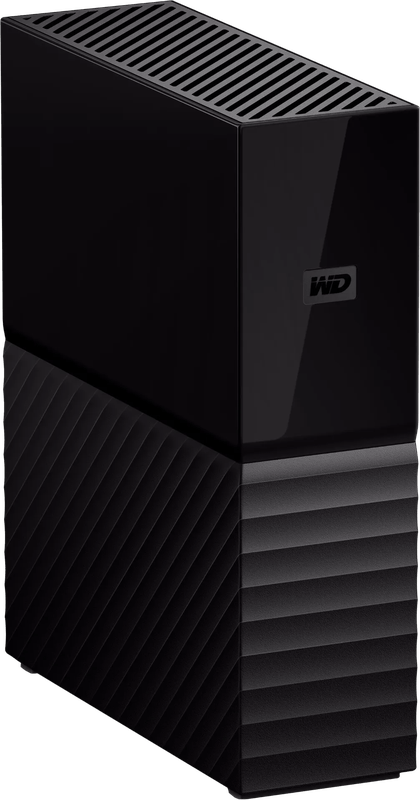
Most of the time, an external hard drive comes into the house when the computer reports that it has run out of space. The photos are moved over and deleted from the laptop, and the backup has turned into an archive with exactly one copy. For a family or office workstation, our editorial team therefore recommends a desktop drive with its own power supply, 8 TB or more and software that backs up regularly, such as the WD My Book 8 TB. If you only need space and handle backups with the built-in tools of Windows or macOS, the no-frills Seagate Expansion Desktop is the cheaper option.
Why a hard drive with a power supply at all?
External drives come in two designs. The small 2.5-inch drives draw their power from the USB cable and fit in a jacket pocket. Desktop drives contain a large 3.5-inch drive, need a power outlet and sit permanently next to the computer or on a shelf. In return, capacities go much higher: according to its own product page, Seagate offers the Expansion Desktop up to 28 TB, and Western Digital the Elements Desktop up to 26 TB.
Per terabyte, they cost considerably less than an SSD. They are not faster. If you edit videos on the go or carry projects back and forth between two computers, you are better off reading our guide to the external SSD for speed and mobility (in German). If you want to reuse an old drive from the cupboard, you will find suitable enclosures and docks in our guide to hard drive enclosures.
How much space the backup really needs
The Bundesamt für Sicherheit in der Informationstechnik (BSI), Germany’s Federal Office for Information Security, puts it soberly in its step-by-step guide: if you want to back up all your data, you need a storage medium that is larger than the computer’s storage. That is the minimum. Backup programs keep several versions so that last week’s file can be restored too. Each version takes up space.
An everyday example: a laptop with 1 TB, an older PC with 2 TB and the photos from the phone that end up somewhere. With 4 TB, the drive would be almost full after the first complete run. That is why we prefer to calculate with double what you want to back up today. Then comes the small disappointment when you plug it in. Manufacturers count in steps of 1,000, Windows and macOS partly in steps of 1,024, as Seagate itself points out on its product page. An 8 TB drive therefore shows up in File Explorer as around 7.3 TB.
USB-C or USB-A: what matters for speed
With a hard drive, the mechanics are the bottleneck, not the cable. LaCie quotes up to 290 MB/s for the d2 Professional, measured on a Mac, and SanDisk up to 250 MB/s for the 12 TB G-DRIVE. A 5 Gbit/s USB connection can transfer around 625 MB/s in theory. So the connection is never the bottleneck.
You will still notice the difference, namely on the first run. Assuming a sustained 200 MB/s, copying 4 TB takes a little over five and a half hours. With a slow drive, that becomes a whole night. After that, only changes are added. Often overlooked: Western Digital specifies an operating temperature of 5 to 35 °C for the Elements and My Book. Such a drive has no place in an unheated garden shed or a basement in winter.
What the BSI advises on storage
A backup that is permanently connected to the computer shares its fate. The BSI recommends disconnecting the storage medium from the device when not backing up, so that malware or defects do not damage the copy as well. For World Backup Day 2026, the agency also advised keeping a physical storage medium in a different place from the computer, for example because of burglary or fire. „Two copies are better than one“ is the message on the BSI’s consumer page on data backup.
In practice, that means: two medium-sized drives used in rotation rather than one huge drive that always sits on the desk. One stays at home, the other is kept with relatives or at the office. If you have many computers in the household and want to back up everything centrally and automatically, you are better served by network-attached storage. For that, we have our guide to the NAS for photo and video archives.
Six desktop hard drives side by side
| Model | Connection according to the manufacturer | Warranty | Out of the box | Who it is for |
|---|---|---|---|---|
| WD My Book 8 TB | Micro-B, USB 3.2 Gen 1 | 3 years | exFAT, backup software, password protection | Family computer, Windows and Mac |
| WD Elements Desktop 14 TB | Micro-B, USB 3.2 Gen 1 | 2 years | No software, prepared for Windows | Lots of space, backing up with built-in tools |
| Seagate Expansion Desktop 6TB | USB 3.0, Type-A cable | 2 years | Toolkit software, Rescue data recovery | Tight budget, one computer |
| Seagate Expansion Desktop 20TB | USB 3.0, Type-A cable | 2 years | Toolkit software, Rescue data recovery | Large archive, little speed needed |
| LaCie d2 Professional USB-C 10 TB | USB-C, 10 Gbit/s | 5 years | IronWolf Pro drive, Rescue data recovery | Photo and video work on a Mac |
| SanDisk Professional G-DRIVE 12TB | USB-C, USB 3.2 Gen 2 | 3 years | APFS, Time Machine, 7,200 rpm | Mac-based studio with lots of footage |
WD My Book 8 TB: backup with a plan
According to the product page, Western Digital includes Acronis True Image for Western Digital with the My Book, which lets you schedule backups. The bundled software also sets a password with 256-bit AES encryption, which really does matter for a drive kept at relatives‘ homes. Out of the box, it is formatted in exFAT and can therefore be read immediately on Windows 10 and macOS 11. The manufacturer gives a three-year warranty, one year more than for the Elements. Our recommendation for the household.
WD Elements Desktop 14 TB: lots of space, nothing extra
The Elements is the plain sister of the My Book. An enclosure measuring 135 × 48 × 165.8 mm, a power supply, a USB cable, a two-year warranty. Western Digital does not list backup software in the scope of delivery. For Mac users it is the more cumbersome choice, because according to the manufacturer reformatting may be necessary. If you use File History on a Windows PC, you get a lot of capacity here without any extras.
Seagate Expansion Desktop 6TB: the entry point
According to the data sheet, Seagate supplies an 18 W power supply, a short USB 3.0 cable of around 46 cm and the Toolkit backup software. On top of that come the Rescue Data Recovery Services, i.e. data recovery by the manufacturer, which, however, is not available in every country. With 6 TB, it is enough for a single computer with a photo collection. For Time Machine, it may need to be reformatted.
Seagate Expansion Desktop 20TB: an archive on the shelf
The same series as the 6 TB model, just with more than three times the capacity. It fits where raw data from cameras and drones is meant to sit for years. One warning, though. If you put 20 TB on a single drive, you also lose 20 TB if it fails. Without a second copy, it remains an archive, not a backup.
LaCie d2 Professional USB-C 10 TB: five years of peace of mind
According to LaCie, the aluminum enclosure of the d2 houses a Seagate IronWolf Pro, a drive from the professional range. It connects via USB-C, including to Thunderbolt computers. A five-year warranty and the Rescue data recovery make it the longest coverage in this comparison. For family backups, that is too much device. If you offload pictures from your Mac every day, you will see it differently.
SanDisk Professional G-DRIVE 12TB: built for the Mac
The G-DRIVE comes formatted in APFS and, according to SanDisk, is ready for Time Machine. Windows computers can only read it after reformatting. Inside is an Ultrastar drive spinning at 7,200 revolutions per minute, and the anodized aluminum enclosure is stackable. Weight according to the manufacturer: 1.32 kg. A desk device.
Which drive suits which computer
- Family PC or laptop, a mix of Windows and Mac: WD My Book 8 TB, because of the software, password and three-year warranty.
- Tight budget and only one computer: Seagate Expansion Desktop 6TB, ideally bought twice and stored in rotation.
- Large photo collection on a Windows PC: WD Elements Desktop 14 TB with File History.
- Creative work on a Mac: SanDisk Professional G-DRIVE 12TB for Time Machine, LaCie d2 Professional if the long warranty matters more.
- Long-term archive for raw data: Seagate Expansion Desktop 20TB, but only with a second copy in another location.
Set up the automatic backup on day one. A drive that will only be connected „soon“ protects nothing.
If the backup is to run automatically and for several devices, a NAS is the next step; which class of device fits is sorted out in our guide buying a NAS.
Frequently asked questions
How large should an external hard drive for backup be?
According to the BSI (German Federal Office for Information Security), larger than the computer's storage; that is the minimum. Backup programs keep several versions, and each one takes up space. We calculate with double what you want to back up today. Incidentally, an 8 TB drive shows up in File Explorer as around 7.3 TB, because it is calculated differently.
Is USB-C faster than USB-A for a hard drive?
Hardly; with a hard drive, the mechanics are the bottleneck, not the cable. LaCie quotes up to 290 MB/s for the d2 Professional, while a 5 Gbit/s USB connection can transfer around 625 MB/s in theory. The speed becomes noticeable on the first run: at 200 MB/s, 4 TB take a little over five and a half hours.
How do I store a backup hard drive properly?
Separately from the computer. The BSI recommends disconnecting the medium when not backing up, so that malware or defects do not hit the copy, and keeping a copy in another location. In practice, that means two medium-sized drives used in rotation, one at home and one with relatives or at the office.
Which external hard drive works with a Mac?
The SanDisk Professional G-DRIVE 12TB comes formatted in APFS and, according to SanDisk, is ready for Time Machine; Windows can only read it after reformatting. If a long warranty matters more, the LaCie d2 Professional with five years is a good fit. According to the manufacturer, the WD Elements may need to be reformatted on a Mac.
Desktop hard drive or external SSD?
Desktop drives with a 3.5-inch drive need a power outlet but cost considerably less per terabyte and go up to 28 TB. They are not faster. If you edit videos on the go or carry projects between computers, you are better served by an external SSD. For backups at your desk, a hard drive is enough.
Where should an external hard drive not be placed?
Not in the cold. Western Digital specifies an operating temperature of 5 to 35 °C for the Elements and My Book. Such a drive has no place in an unheated garden shed or a basement in winter. And a backup that is permanently connected to the computer shares its fate.
Sources
- Western Digital: My Book Desktop Hard Drive
- Western Digital: WD Elements Desktop
- Seagate: Expansion Desktop data sheet (PDF)
- Seagate: Expansion Desktop, product page
- LaCie: d2 Professional data sheet (PDF)
- SanDisk Professional: G-DRIVE
- BSI (German Federal Office for Information Security): data backup – how does it work?
- BSI: step by step to a data backup (PDF)
- BSI: press release on World Backup Day 2026
Where to buy
- WD My Book 8 TBView at CoolblueAvailable in Germany: Coolblue
- Seagate Expansion Desktop 6TBView at CoolblueAvailable in Germany: Coolblue
- WD Elements Desktop 14 TBView at CoolblueAvailable in Germany: Coolblue
- Seagate Expansion Desktop 20TBView at CoolblueAvailable in Germany: Coolblue
- LaCie d2 Professional USB-C 10 TBView at CoolblueAvailable in Germany: Coolblue
- SanDisk Professional G-DRIVE 12TBView at CoolblueAvailable in Germany: Coolblue